Why Does a Computer Slow Down Over Time?
Every computer accumulates temporary files, unused programs, and background processes as you use it. Over months and years, these digital leftovers can clog your system. Understanding why this happens is the first step in learning how to speed up your computer effectively.
Common causes include too many programs launching at startup, insufficient storage space, outdated drivers, and malware. Many users also run multiple browser tabs or applications simultaneously, which strains memory and processor resources.
The good news is that most slowdowns are reversible. You can restore performance without replacing hardware, though results are not guaranteed for every system.
Clean Up Unnecessary Files and Programs
One of the quickest ways to free up resources is removing what you do not use. Start by uninstalling software you no longer need. Go to your system’s settings or control panel and review your installed applications.
- Remove trial versions of software you never activated
- Delete browser extensions you do not recognize or use
- Empty the Recycle Bin or Trash folder
- Use built-in disk cleanup tools (like Disk Cleanup on Windows or Storage Management on macOS)
These actions can recover several gigabytes of space. More free space often leads to faster read and write speeds, especially on older hard drives.
Manage Startup Programs
Many programs are set to launch automatically when you turn on your computer. This can significantly increase boot time and slow down performance. Checking your startup list is a simple step in how to speed up your computer.
On Windows, open Task Manager (press Ctrl + Shift + Esc) and click the “Startup” tab. On macOS, go to System Settings > General > Login Items. Disable any program you do not need immediately after startup.
Common candidates for disabling include messaging apps, cloud sync services, and media players. You can still open them manually later. This change may reduce boot time by several seconds or more, depending on your system.
Update Your Operating System and Drivers
Outdated software can cause compatibility issues and security vulnerabilities that slow down your computer. Regular updates often include performance improvements and bug fixes.
Check for system updates in your settings menu. For Windows, go to Settings > Windows Update. For macOS, go to System Settings > General > Software Update. Also update your graphics, network, and chipset drivers from the manufacturer’s website.
Keeping everything current is a low-effort way to maintain speed. Requirements may vary depending on your computer’s age and model.
Check for Malware and Unwanted Software
Malware, adware, and potentially unwanted programs can run hidden processes that consume CPU and memory. This can cause noticeable lag even on powerful machines. Scanning for threats is an essential part of how to speed up your computer.
Use the built-in Windows Defender or macOS’s built-in security tools to run a full scan. You can also use trusted third-party scanners, but avoid free tools that bundle additional software. If you suspect an infection, run a scan in safe mode for better results.
If malware is found, removal may improve performance. However, results are not guaranteed for every type of infection. In severe cases, a clean operating system reinstall may be needed.
Adjust Visual Effects and Power Settings
Modern operating systems use visual animations, transparency effects, and shadows. These look nice but consume system resources. Adjusting these settings can help, especially on older computers.
On Windows, search for “Performance” in the start menu and choose “Adjust the appearance and performance of Windows.” Select “Adjust for best performance” or manually disable specific effects. On macOS, go to System Settings > Accessibility > Display and reduce motion or transparency.
Also check your power settings. On laptops, selecting a “High Performance” power plan may increase speed but will use more battery. Options may vary depending on your device.
Common Mistakes to Avoid When Trying to Speed Up Your Computer
Many users try quick fixes that actually make things worse. Here are some pitfalls to avoid:
- Using registry cleaners: They rarely help and can cause system instability.
- Installing “PC optimizer” software: Many are scams or bundle adware.
- Deleting system files you do not understand: This can break your operating system.
- Overclocking without proper cooling: This risks hardware damage and is not recommended for beginners.
- Ignoring hardware limits: If your computer is over 7–8 years old, software tweaks have limited impact.
Safe, manual methods are almost always better than automated tools that promise instant fixes. Check your status before trying any advanced steps.
What to Do Next If Your Computer Is Still Slow
If you have tried the steps above and your computer remains slow, consider hardware upgrades. Adding more RAM or replacing an old hard drive with a solid-state drive (SSD) can dramatically improve performance. These upgrades are available in most areas and may be eligible for installation at local repair shops.
Before upgrading, verify compatibility with your computer model. Some older laptops have soldered RAM or non-standard drive connectors, so requirements may apply. If upgrading is not an option, backing up your files and performing a clean operating system reinstall can also help.
Remember that no single fix works for every computer. Results are not guaranteed, and professional help may be needed for complex issues.
Frequently Asked Questions
Will clearing my browser history speed up my computer?
Clearing browser history, cache, and cookies can free up storage space and may improve browser responsiveness. However, it usually has a minor effect on overall system speed. It is more helpful for fixing browser-specific issues like slow page loading.
How often should I restart my computer to keep it fast?
Restarting your computer at least once a week is a good habit. It clears temporary memory, stops background processes, and installs pending updates. If you notice slowdowns, a restart is often the first thing to try.
Does more RAM always make a computer faster?
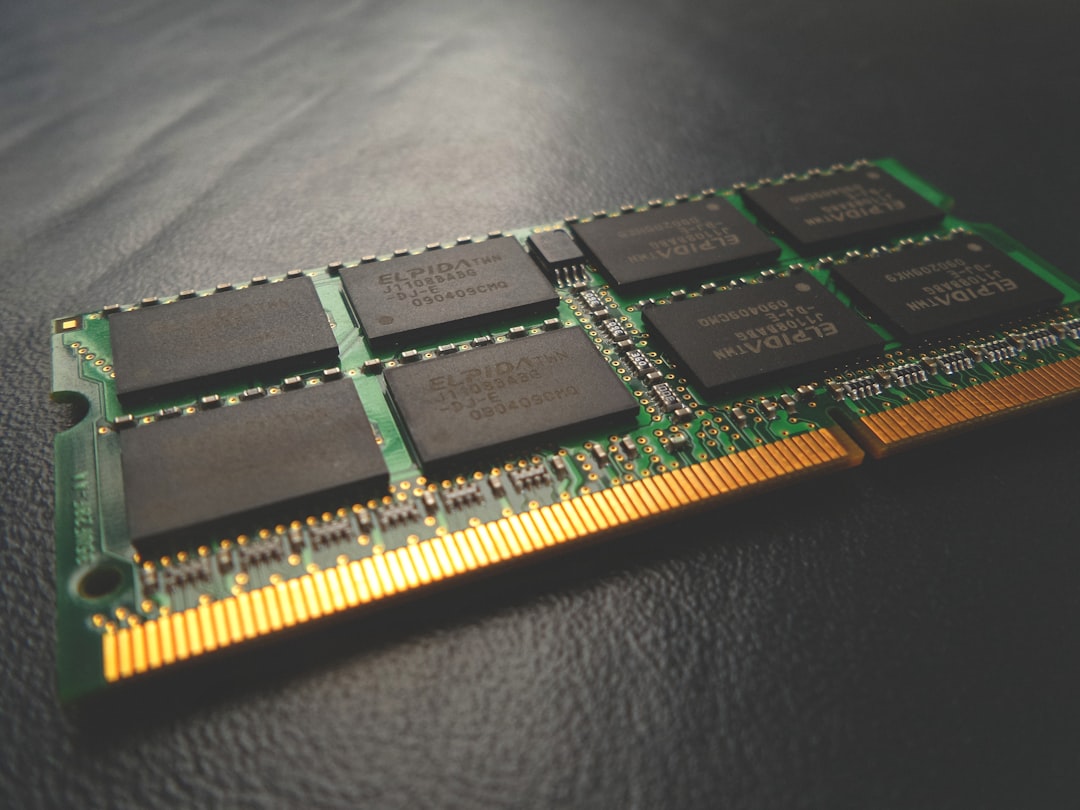
Adding RAM helps if your computer frequently runs out of memory (for example, when multitasking or using heavy programs). But if your system already has enough RAM for your tasks, adding more will not increase speed. Check your current usage in Task Manager or Activity Monitor first.
Can a full hard drive cause slow performance?
Yes, especially on traditional hard drives. When a drive is nearly full, the system has less space for temporary files and may struggle to read and write data efficiently. Keeping at least 10–15% of your drive free is recommended for optimal performance.
Is it safe to use free PC cleaner software?
Many free PC cleaners are safe, but some include adware or make misleading claims. Stick to reputable tools from known developers, or better yet, use your operating system’s built-in cleanup tools. Avoid software that promises “instant speed boost” or “guaranteed results.”
Related Searches
- how to clean up computer storage
- best startup programs to disable
- free up RAM on Windows 10
- computer running slow after update
- how to check for malware on PC
- SSD upgrade for older laptop
- why is my computer so slow all of a sudden
- optimize Windows 11 for performance