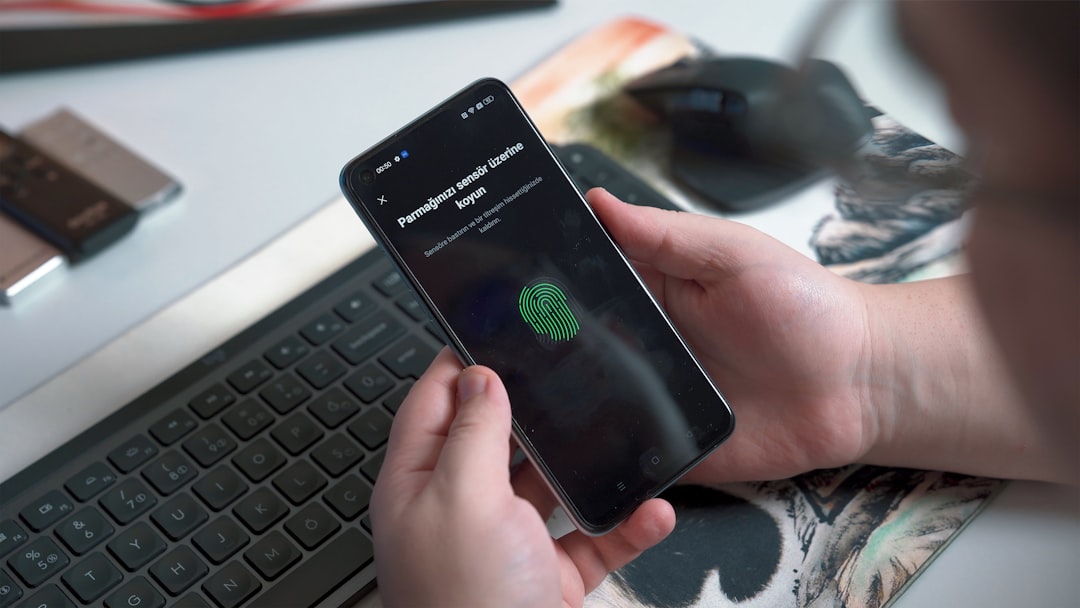
What Is Two Factor Authentication and Why Does It Matter?
Two factor authentication, often abbreviated as 2FA, is a security process that requires two different forms of identification before granting access to an account. Instead of just entering a password, you also provide a second factor, such as a code sent to your phone or a fingerprint scan. This approach significantly reduces the risk of unauthorized access even if your password is stolen.
Many people search for "how to use two factor authentication" because they want to protect sensitive data like emails, bank accounts, or social media profiles. It is especially useful for accounts that contain personal or financial information. However, no security method is completely foolproof, and results are not guaranteed. Two factor authentication is a strong layer, but it works best when combined with other safe practices like using unique passwords and keeping software updated.
Common Types of Two Factor Authentication Methods
There are several ways to implement 2FA, and the best option for you depends on the services you use and your personal preferences. Options may vary by provider, and some methods may be available only in certain areas.
- SMS or text message codes: A one-time code is sent to your mobile phone after you enter your password. This is simple but can be intercepted in some cases.
- Authenticator apps: Apps like Google Authenticator, Microsoft Authenticator, or Authy generate time-based codes on your device. These do not rely on cellular networks and are generally more secure.
- Hardware security keys: Physical devices like YubiKey plug into your computer or connect via NFC. They provide strong protection but require a purchase.
- Biometric verification: Fingerprint scans, facial recognition, or iris scans are used on many smartphones and laptops. These are convenient but may not be supported by all accounts.
- Email-based codes: Some services email a code to your registered email address. This is less secure if your email account is compromised.
How to Set Up Two Factor Authentication on Popular Platforms
Setting up 2FA is usually straightforward, but steps can vary slightly by platform. Below are general instructions for common services. Always check your account settings for the most current options, as features may change.
Google Accounts: Go to your Google Account settings, select "Security," then find "2-Step Verification." Follow the prompts to add a phone number or authenticator app. You may also set up backup codes in case you lose access to your primary method.
Facebook and Instagram: Open Settings & Privacy, then "Security and Login." Look for "Two-Factor Authentication" and choose between text message, authenticator app, or a security key. Requirements may apply, and you may need to verify your identity first.
Microsoft Accounts: Sign in to your Microsoft account, go to "Security," then "Advanced security options." Under "Two-step verification," turn it on and follow the setup wizard. Options include app, phone, or email.
Apple ID: On an iPhone or iPad, go to Settings, tap your name, then "Password & Security." Enable two-factor authentication and follow the on-screen instructions. This is built into newer Apple devices and works with trusted devices.
What You Need Before Enabling Two Factor Authentication
Before you start, it helps to gather a few things. First, make sure you have access to the device or method you plan to use for the second factor. This could be a smartphone with an authenticator app installed, a phone number that can receive SMS, or a hardware security key. Some services may require you to confirm your email address or provide a backup phone number.
Eligibility for certain methods may depend on your location or account type. For example, not all services support hardware keys, and SMS codes may not be available in every country. Check your account settings to see what is offered. It is also wise to write down backup codes provided during setup and store them in a safe place. If you lose your phone or security key, these codes can help you regain access.
Common Mistakes to Avoid When Using Two Factor Authentication
Even with 2FA enabled, mistakes can reduce its effectiveness. Here are some pitfalls to watch out for:
- Using the same phone number for all accounts: If your phone is lost or stolen, you may lose access to multiple accounts. Consider using an authenticator app for better portability.
- Skipping backup codes: Many users forget to save backup codes. Without them, you could be locked out if your primary method fails. Requirements may apply, and some services offer alternative recovery options.
- Ignoring suspicious login alerts: If you receive a 2FA code you did not request, do not ignore it. Someone may be trying to break into your account. Change your password immediately.
- Disabling 2FA for convenience: Some people turn off 2FA because it takes a few extra seconds. This reduces your security level. Consider using a trusted authenticator app to speed up the process.
- Not updating your contact information: If you change your phone number or email, update it in your account settings. Otherwise, you may not receive codes and could be locked out.
What to Do If You Lose Access to Your Second Factor
Losing your phone, security key, or authenticator app can be stressful, but there are steps you can take. First, try using backup codes you saved during setup. Most services provide these as a one-time use option. If you do not have backup codes, check if the service offers alternative recovery methods, such as sending a code to a backup email or answering security questions.
Some platforms allow you to verify your identity using a trusted device or by contacting customer support. Be prepared to provide proof of ownership, such as account details or identity documents. Results are not guaranteed, and recovery times may vary. To avoid this situation in the future, keep a printed copy of your backup codes in a secure location, and consider using multiple second factors if the service allows it.
How to Check If Two Factor Authentication Is Right for You
Two factor authentication is recommended for almost all online accounts, especially those containing personal, financial, or work-related data. However, it may not be necessary for accounts you rarely use or that contain no sensitive information. Evaluate your risk based on the following factors:
- Account importance: Email, banking, and social media accounts are high-priority targets. Enable 2FA on these first.
- Your online habits: If you use public Wi-Fi or share devices, 2FA adds important protection.
- Convenience vs. security: Some methods are faster than others. Authenticator apps usually work offline and are quick to use.
- Device compatibility: Check if your smartphone or computer supports the method you want. Options may vary by device and operating system.
If you are unsure, start with one account and see how it fits into your routine. You can always adjust your settings later. No single method works for everyone, so choose what feels manageable and secure for your situation.
FAQ
What is two factor authentication in simple terms?
Two factor authentication is a security feature that requires two separate ways to prove you are who you say you are. Usually, this is something you know (like a password) and something you have (like a code from your phone).
Is two factor authentication safe to use?
Yes, it is generally safe and adds strong protection. However, no method is 100% secure. SMS codes can be intercepted in rare cases, while authenticator apps and hardware keys offer higher security. Results may vary based on your setup and the service provider.
Do I need two factor authentication for every account?
Not necessarily. It is most important for accounts with sensitive data, such as email, banking, and social media. For less critical accounts, you may decide it is not worth the extra step. Check your provider's options to see what is available.
What happens if I lose my phone with the authenticator app?
If you lose your phone, you can use backup codes you saved earlier. Many services also offer alternative recovery methods, such as sending a code to a backup email or answering security questions. Options may vary by provider, so always save backup codes during setup.
Can I use two factor authentication without a smartphone?
Yes, you can use hardware security keys, receive codes via email, or use a landline phone for voice calls in some cases. Some services also support printed backup codes. Check with your account provider to see what methods they support.
Related Searches
- two factor authentication setup guide
- best authenticator app for 2FA
- how to enable 2FA on Instagram
- two factor authentication vs password manager
- secure your Google account with 2FA
- 2FA backup codes recovery tips
- what is multi factor authentication
- disable two factor authentication safely