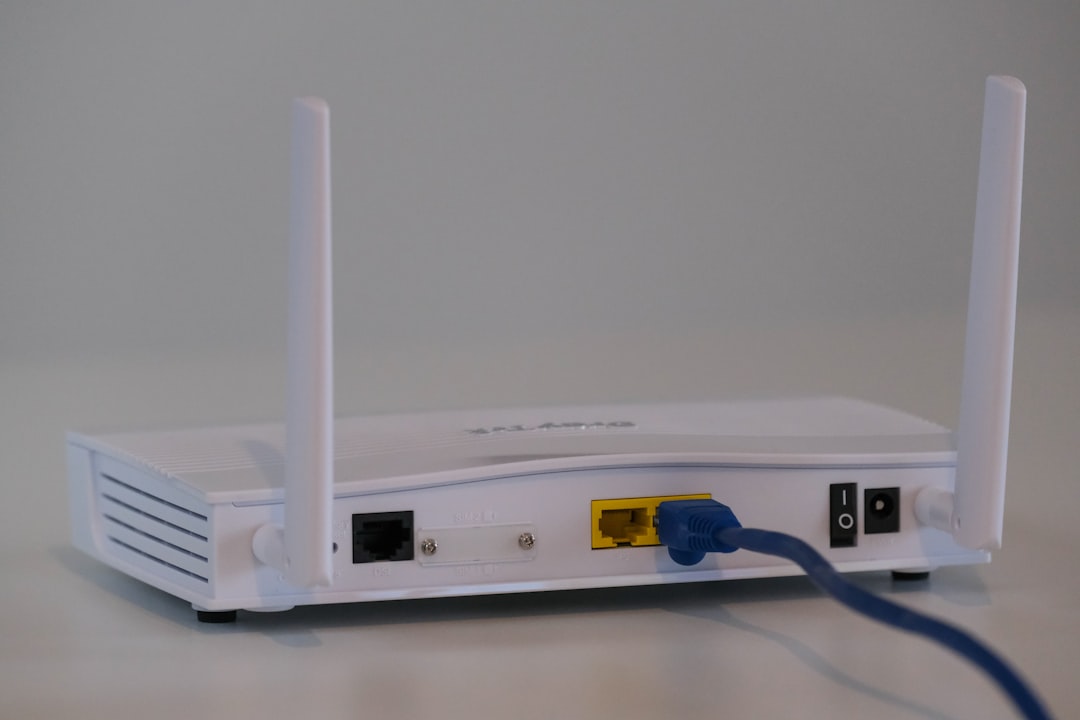
What Does "Slow Internet" Mean and Why Does It Happen?
When people search for "how to troubleshoot slow internet," they are usually experiencing a noticeable lag in loading websites, buffering videos, or dropped connections. Slow internet can result from a variety of factors, including network congestion, outdated equipment, interference from other devices, or issues with your internet service provider (ISP). Understanding the cause is the first step toward finding a solution.
Common reasons for slow internet include:
- Too many devices connected to your network at once
- Old or poorly positioned router or modem
- Wi-Fi interference from walls, appliances, or neighboring networks
- Background apps or software updates consuming bandwidth
- ISP throttling or temporary outages in your area
It’s important to note that not all slow internet issues can be fixed instantly. Some factors, such as your physical distance from the router or your ISP’s infrastructure, may require professional assistance or equipment upgrades. Results are not guaranteed, but these steps can help you rule out common problems.
How to Check Your Current Internet Speed
Before you start troubleshooting, you need a baseline. Run a speed test using a reliable online tool (like Speedtest.net or Fast.com) while connected to your Wi-Fi. Then, run the same test while connected directly to your modem with an Ethernet cable. This comparison helps you determine if the issue is with your Wi-Fi or your internet service itself.
When running a speed test:
- Close all other apps and browser tabs
- Ensure no other devices are downloading or streaming
- Test at different times of the day (e.g., morning vs. evening)
- Write down your download speed, upload speed, and ping (latency)
If your wired connection is much faster than your Wi-Fi, the problem is likely your wireless network. If both are slow, the issue may be with your ISP or your modem. Keep in mind that speed test results can vary, and your plan’s advertised speed is a maximum, not a guarantee.
Basic Troubleshooting Steps You Can Try First
Before diving into complex fixes, start with these simple actions. They often resolve slow internet issues quickly and safely.
- Restart your modem and router: Unplug both devices, wait 30 seconds, and plug them back in. This clears temporary glitches.
- Move closer to your router: Physical distance and obstacles (walls, furniture) can weaken Wi-Fi signals.
- Disconnect unused devices: Every device on your network shares bandwidth. Temporarily disconnect phones, tablets, or smart home gadgets.
- Check for outages: Visit your ISP’s website or app to see if there is a known outage in your area.
- Update router firmware: Log into your router’s settings (usually via a web browser) and check for firmware updates. Manufacturers release updates to improve performance and security.
These steps may help, but they do not guarantee a permanent fix. If your internet remains slow, move on to the next sections.
Common Mistakes to Avoid When Troubleshooting
Many people make errors that waste time or even worsen their connection. Avoid these common pitfalls:
- Ignoring wired connections: If you only test over Wi-Fi, you might blame your ISP when the real issue is wireless interference.
- Using outdated equipment: Routers older than 5 years may not support modern speeds or standards (like Wi-Fi 6). Your ISP may provide a newer modem for free or a small fee.
- Overlooking background apps: Apps like cloud backups, video calls, or game updates can consume significant bandwidth without you noticing.
- Placing the router in a closed cabinet: Routers need open space and ventilation. Hiding them in a closet or behind a TV can reduce signal strength.
- Resetting without noting settings: A factory reset can fix issues, but it will erase your custom network name and password. Write them down first.
By avoiding these mistakes, you can troubleshoot more effectively and avoid unnecessary frustration.
When to Contact Your Internet Service Provider (ISP)
If you’ve tried the steps above and your internet is still slow, it may be time to contact your ISP. Before you call, gather the following information:
- Your account number or customer ID
- Speed test results from both wired and wireless connections
- The times of day when slowness occurs
- Any error messages or patterns you’ve noticed
When speaking with support, ask about:
- Planned maintenance or outages in your area
- Whether your current plan is suitable for your usage (e.g., streaming, gaming, multiple users)
- Options to upgrade your equipment (modem or router) – requirements may apply
- Whether you may be eligible for a different plan or promotional rate – availability varies by area
Keep in mind that ISPs may throttle certain types of traffic (like video streaming) during peak hours. Ask if this applies to your plan. Also, results are not guaranteed when switching plans or equipment; your experience may vary.
Advanced Troubleshooting for Persistent Issues
If basic steps and ISP contact don’t resolve the problem, you can try more advanced methods. These require some technical comfort but can be done safely.
- Change your Wi-Fi channel: In crowded areas (apartments, dense neighborhoods), many routers use the same channel. Log into your router settings and switch to a less congested channel (e.g., from channel 6 to 11).
- Use a Wi-Fi analyzer app: Free smartphone apps can show you which channels are least crowded in your area.
- Consider a mesh Wi-Fi system: If your home is large or has multiple floors, a single router may not provide adequate coverage. Mesh systems use multiple nodes to extend signal – but they require an upfront investment.
- Check for malware or viruses: Malware can secretly use your internet connection, slowing it down. Run a security scan using reputable antivirus software.
- Test with a different device: If only one device is slow, the problem may be with that device (e.g., old network card, full storage, or software issues).
These steps may help, but they involve more effort and possible cost. Always back up your router settings before making changes.
What to Do Next: Optimize Your Network for Better Performance
After troubleshooting, you can take proactive steps to maintain a faster connection. Here are safe, realistic recommendations:
- Position your router centrally: Place it in an open area, elevated off the floor, away from metal objects and electronics.
- Limit bandwidth-heavy activities during peak hours: Schedule large downloads or updates for late at night if possible.
- Use quality of service (QoS) settings: Many modern routers allow you to prioritize traffic for specific devices or apps (e.g., video calls over gaming).
- Update your devices: Keep your computer, phone, and smart home devices up to date. Outdated software can cause connectivity issues.
- Consider a wired connection for critical devices: If you work from home or game, using an Ethernet cable for your computer or console provides the most stable connection.
Remember, no single fix works for everyone. Your results will depend on your home setup, ISP, and local network conditions. Regularly check your speed and adjust as needed.
Frequently Asked Questions (FAQ)
Why is my internet slow even after restarting my router?
A restart clears temporary memory, but it does not fix underlying issues like outdated firmware, ISP throttling, or interference. If the problem returns, try the advanced steps above or contact your ISP.
Can too many devices cause slow internet?
Yes. Each device connected to your network uses a portion of your bandwidth. If you have many devices streaming, gaming, or downloading simultaneously, your internet may slow down. Disconnecting unused devices can help.
Is it better to use Wi-Fi or Ethernet for faster speeds?
Ethernet is generally faster and more stable than Wi-Fi because it avoids wireless interference. If possible, use a wired connection for activities that require consistent speed, like video calls or online gaming.
How often should I replace my router?
Most routers last 3 to 5 years. After that, they may not support newer Wi-Fi standards or your ISP’s highest speeds. Check with your ISP – they may offer a free or discounted upgrade, though availability may vary.
Why is my internet slow only at certain times of the day?
This is often due to network congestion. Many people in your area are using the internet at the same time (e.g., evenings). Your ISP may also throttle traffic during peak hours. Testing at different times can confirm this pattern.
Related Searches
- how to increase Wi-Fi signal strength at home
- best router for slow internet connection
- why is my internet slow on one device only
- how to test internet speed accurately
- common causes of slow internet in apartments
- how to fix buffering on streaming services
- difference between modem and router for internet speed
- how to reduce lag for online gaming