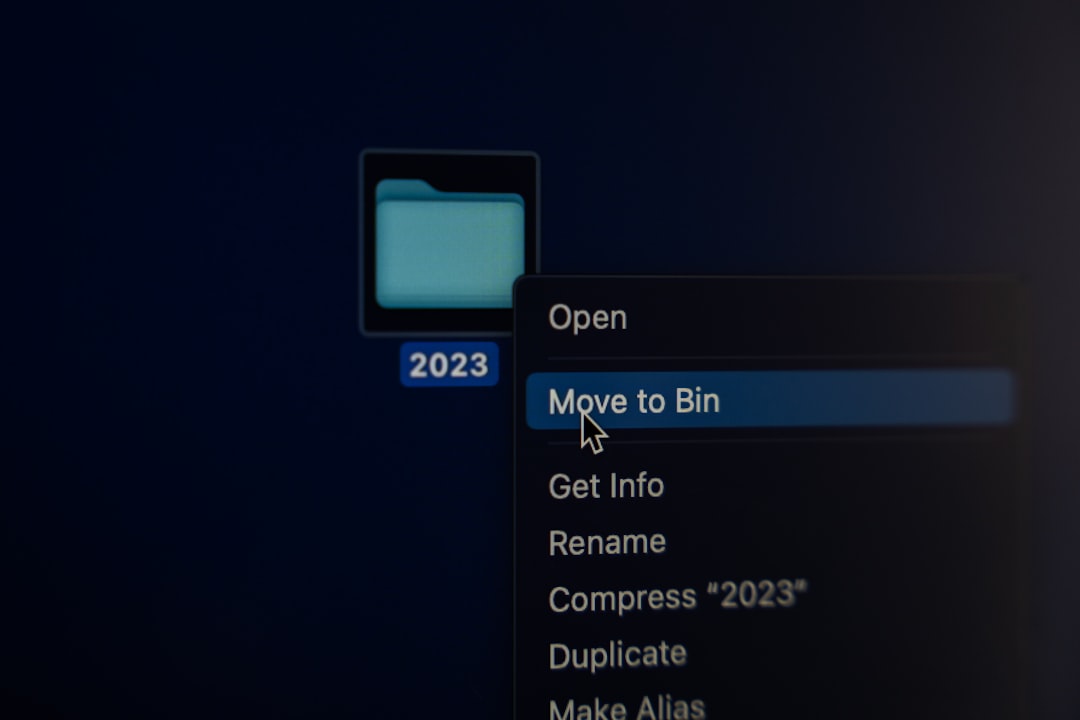
What Does It Mean to Recover Deleted Files?
When you delete a file from your computer, phone, or external drive, the file is not immediately erased. Instead, the system marks the space it occupied as available for new data. Until that space is overwritten, the original file may still be recoverable using the right tools or methods. This is why acting quickly is important—the more you use the device, the higher the chance that the deleted file gets overwritten.
Recovery is not always possible, especially if you have used the device heavily since the deletion. However, many people successfully restore files using built-in features or third-party software. The key is to stop using the device immediately and follow a careful process.
Why People Search for File Recovery Options
Most users search for how to recover deleted files after a moment of panic—perhaps they emptied the Recycle Bin by mistake, formatted a drive without backing up, or lost files due to a system crash. Others may be dealing with corrupted storage media or accidental deletions from shared folders.
Common scenarios include:
- Deleting a photo or document from a smartphone
- Losing work files after a software update or virus attack
- Emptying the Recycle Bin or Trash folder
- Formatting a memory card or USB drive prematurely
- Accidentally deleting emails or cloud-stored files
Understanding why you lost the file helps you choose the most appropriate recovery method. Options may vary depending on your device, operating system, and how long ago the deletion occurred.
Common Requirements Before You Start Recovery
Before attempting to recover deleted files, there are a few things to check. These factors do not guarantee success, but they can improve your chances:
- Stop using the device: Any new file saved to the same drive may overwrite the deleted data.
- Check the Recycle Bin or Trash: On Windows and macOS, deleted files often stay here until you empty them.
- Look for backup copies: Cloud services like Google Drive, iCloud, or OneDrive may have version history or trash folders.
- Verify system requirements: Some recovery tools only work with specific file systems (NTFS, FAT32, exFAT) or operating systems.
- Make sure the storage device is physically functional: If the drive has hardware damage, software recovery may not be possible.
Requirements may apply to certain recovery tools, such as administrator permissions or a separate storage device to save recovered files. Always read the instructions carefully before proceeding.
How to Check Available Recovery Options
Depending on your situation, you may have several ways to recover deleted files. Here is a step-by-step approach to check what is available:
- Step 1 – Check the Recycle Bin or Trash: On Windows, double-click the Recycle Bin icon. On macOS, open the Trash folder. If the file is there, right-click and select "Restore."
- Step 2 – Look in cloud storage trash: Google Drive, Dropbox, and OneDrive all have a trash or recycle bin. Files are usually kept for 30 days or more.
- Step 3 – Use "Previous Versions" (Windows): Right-click the folder where the file was stored, select "Properties," then the "Previous Versions" tab. If available, you can restore an older version.
- Step 4 – Use Time Machine (macOS): If you have Time Machine enabled, you can browse through backups and restore the deleted file.
- Step 5 – Try free or paid recovery software: Tools like Recuva, PhotoRec, or Disk Drill can scan the drive for recoverable data. Results are not guaranteed, and you should avoid installing the software on the same drive you are trying to recover from.
If none of these methods work, professional data recovery services may be an option, but they can be expensive and results vary by case.
Common Mistakes to Avoid When Trying to Recover Deleted Files
Many users accidentally reduce their chances of recovery by making simple errors. Avoid these common mistakes:
- Continuing to use the device: Saving new files, installing software, or even browsing the internet can overwrite the deleted data.
- Using the same drive for recovery software: Always install recovery tools on a different drive, or use a portable version from a USB stick.
- Ignoring backup options: Many people forget to check cloud trash or system backups before using third-party tools.
- Performing a full system restore or format: This can permanently erase data that might otherwise be recoverable.
- Downloading untrusted software: Some "free" recovery tools contain malware or make false promises. Stick to reputable programs with user reviews.
Being patient and following the correct order of steps can make a big difference. If you are unsure, it is better to pause and research your specific situation rather than rushing.
What to Do Next After Attempting Recovery
Once you have tried to recover your deleted files, consider these next steps to prevent future data loss:
- Set up automatic backups: Use built-in tools like Windows File History, macOS Time Machine, or cloud backup services.
- Enable version history: Many cloud services keep older versions of files, which can be a lifesaver.
- Be mindful when deleting: Double-check files before emptying the Recycle Bin or Trash.
- Consider external storage: Keep important files on an external hard drive or SSD as an extra layer of protection.
- Test your backups regularly: A backup is only useful if you can actually restore from it.
No recovery method is guaranteed to work every time. The best defense is a good backup routine. If you were unable to recover your files, do not lose hope—professional recovery services may be able to help, though costs and success rates vary.
Frequently Asked Questions
Can I recover deleted files after emptying the Recycle Bin?
Yes, it is sometimes possible. When you empty the Recycle Bin, the files are not immediately erased from the drive. Recovery software may be able to scan for and restore them, but results are not guaranteed. The sooner you act, the better your chances.
How long do deleted files stay recoverable?
There is no set time limit. Files remain recoverable until the storage space they occupied is overwritten by new data. This could happen within minutes or take months, depending on how much you use the device.
Is it safe to use free file recovery software?
Some free tools are safe and effective, but others may contain malware or adware. Stick to well-known programs like Recuva (free version), PhotoRec, or TestDisk. Always download from official websites and scan the file with antivirus software before running it.
Can I recover deleted files from a smartphone?
Yes, but the method depends on the phone. On Android, you may be able to use the "Trash" folder in Google Photos or Files by Google. On iPhone, deleted photos go to the "Recently Deleted" album for 30 days. For other file types, third-party apps may help, but root access or jailbreaking may be required.
What should I do if recovery software finds my file but cannot open it?
This usually means the file is partially overwritten or corrupted. You can try a different recovery tool, or if the file is very important, consider a professional data recovery service. In some cases, file repair software may help, but success is not guaranteed.
Related Searches
- free file recovery software no watermark
- recover deleted files from hard drive without software
- best data recovery tools for Windows 10
- how to recover permanently deleted photos from Android
- recover deleted files from USB flash drive
- accidentally deleted folder not in recycle bin
- recover files from formatted SD card
- data recovery services near me cost