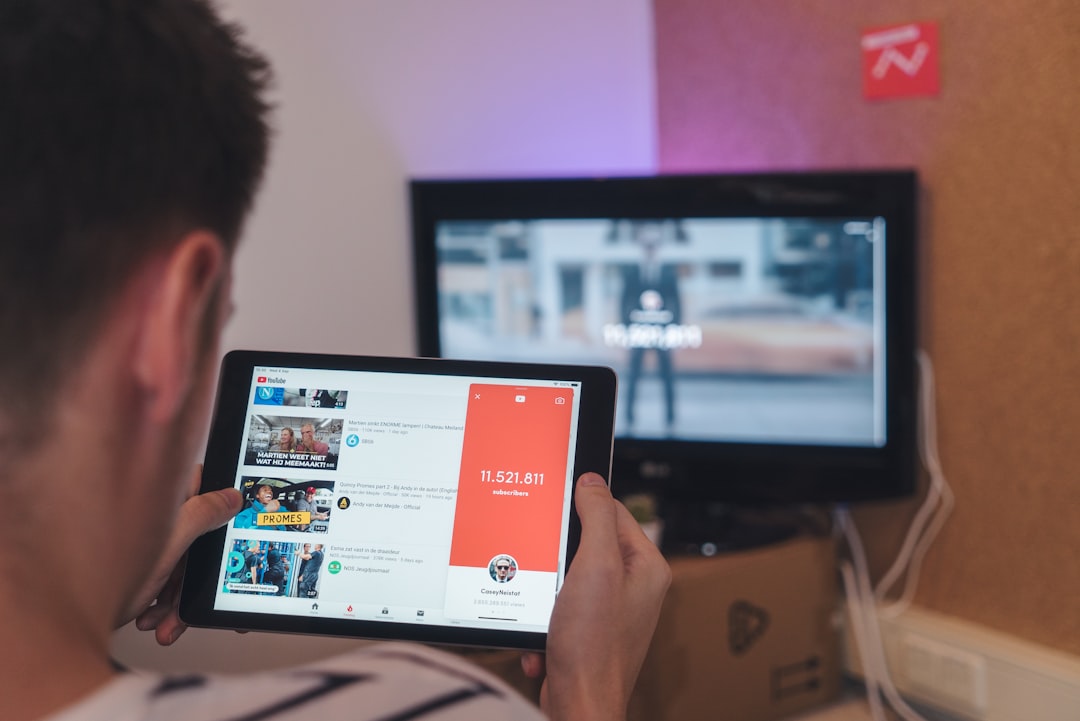
What Does It Mean to Connect a Phone to a TV?
Connecting a phone to a TV means displaying your phone’s screen content on your television. This can be done either through a physical cable or over a wireless network. The result allows you to watch videos, play games, or show presentations using your TV as a larger monitor. Many people search for this method because they want a bigger screen for entertainment or work without buying a separate streaming device.
Different phones and TVs support different connection types. For example, newer smartphones often support wireless screen mirroring, while older models may require an adapter. Your TV’s age and brand also affect which options are available. Checking your device specifications before buying any cables or adapters can save time and money.
Why People Search for This Connection Method
Users typically search for how to connect a phone to a TV for one of three reasons: they want to stream content from apps like Netflix or YouTube, they want to show personal photos or videos to a group, or they need to mirror a work presentation. In many cases, people assume the process is complicated or requires expensive equipment. However, most modern phones and TVs offer simple built-in solutions.
Another common reason is that streaming apps on a phone may not support casting directly to older TVs. In that scenario, a wired connection or an external dongle may be needed. Understanding your specific use case helps you choose the right method. For instance, if you only want to watch Netflix, a wireless method like Chromecast or AirPlay may work. If you need low-latency gaming, a wired HDMI connection is often better.
Common Requirements Before You Start
Before you attempt to connect your phone to a TV, check the following:
- Your phone’s output port: Most Android phones use USB-C, while iPhones use Lightning (older models) or USB-C (iPhone 15 series). Some phones support MHL or DisplayPort over USB-C.
- Your TV’s input ports: Look for HDMI ports on the back or side of your TV. Older TVs may only have composite (red, white, yellow) inputs, which require a special adapter.
- Wireless capability: Your TV should support Miracast, AirPlay, or Chromecast built-in. If not, you may need a separate streaming device.
- Wi-Fi network: For wireless methods, both your phone and TV should be on the same Wi-Fi network. Connection quality may vary based on router speed and distance.
Requirements may apply differently depending on your phone model and TV brand. For example, Samsung phones have Smart View, while iPhones use AirPlay. Checking your device’s user manual or support page can clarify what options are available in your area.
How to Connect Using a Wired HDMI Cable
The most reliable method for connecting a phone to a TV is using a wired HDMI connection. This works well for gaming, video calls, or any activity where low delay matters. Here’s how to do it:
- For Android phones with USB-C: Get a USB-C to HDMI adapter (sometimes called a USB-C hub). Plug the adapter into your phone, then connect an HDMI cable from the adapter to your TV’s HDMI port.
- For iPhones with Lightning: Use Apple’s Lightning Digital AV Adapter. Plug the adapter into your iPhone, then connect an HDMI cable to your TV.
- For iPhone 15 or newer: Use a USB-C to HDMI adapter or cable directly, similar to Android.
Once connected, your TV should automatically detect the signal. If not, use your TV remote to select the correct HDMI input. Note that some Android phones may require you to enable “Screen mirroring” or “Display output” in settings. Results are not guaranteed with all third-party adapters, so using a reputable brand is recommended.
How to Connect Wirelessly Using Screen Mirroring
Wireless screen mirroring is convenient because no cables are needed. However, performance depends on your Wi-Fi network and device compatibility. Follow these general steps:
- For Android: Open Settings, look for “Connected devices” or “Screen mirroring,” then select your TV from the list. On Samsung phones, use Smart View. On other brands, the feature may be called Cast or Wireless Display.
- For iPhone: Swipe open Control Center, tap “Screen Mirroring,” then select your TV. This works with Apple TV or AirPlay-compatible smart TVs from brands like LG, Samsung, and Sony.
- For Windows phones or laptops: Use the “Connect” feature in Action Center, then select your TV if it supports Miracast.
Some TVs may require you to enable screen mirroring in their settings menu first. If your TV does not appear, make sure both devices are on the same Wi-Fi network. Options may vary by region and TV firmware version. If mirroring is slow or laggy, moving your router closer or reducing interference may help.
How to Connect Using a Streaming Device
If your TV does not have built-in wireless support, you can use an external streaming device. Popular options include Google Chromecast, Amazon Fire Stick, or Roku. These devices plug into your TV’s HDMI port and connect to your Wi-Fi network. Here’s the general process:
- Plug the streaming device into your TV and power it on.
- Follow the on-screen setup to connect to your Wi-Fi.
- On your phone, open a supported app (like YouTube or Netflix) and tap the Cast icon.
- Select your streaming device from the list. Your phone screen does not need to stay on for video playback.
For full screen mirroring, some devices like Chromecast allow you to cast your entire phone screen through the Google Home app. Note that not all apps support casting, and some content may be blocked due to copyright restrictions. Checking your app’s compatibility before purchasing a streaming device is a good idea.
Common Mistakes to Avoid
Many users run into issues when connecting their phone to a TV. Here are frequent problems and how to avoid them:
- Using the wrong cable: Not all USB-C cables support video output. Look for cables labeled “USB-C to HDMI” or “video support.”
- Ignoring HDCP issues: Some streaming apps block screen mirroring due to copy protection. In that case, use the app’s built-in Cast feature instead.
- Forgetting to change TV input: After connecting a cable, manually switch your TV to the correct HDMI port using the remote.
- Weak Wi-Fi signal: Wireless mirroring requires a stable connection. If you experience lag, try moving closer to the router or using a wired connection.
- Assuming all TVs are the same: Older TVs may not support wireless methods at all. Check your TV’s manual or search online for its specific features.
Taking a few minutes to verify compatibility can prevent frustration. If you are unsure about your TV’s capabilities, you can check your status by looking up the model number online or contacting the manufacturer. Requirements may apply for certain adapters or cables, so read product descriptions carefully.
What to Do Next After Connecting
Once your phone is connected to the TV, you can adjust display settings for the best experience. On Android, you may be able to choose between mirroring (duplicating your phone screen) or extending (using the TV as a second monitor). On iPhone, mirroring is the default with AirPlay.
For video streaming, use the app’s Cast icon rather than screen mirroring to save battery and improve playback quality. For presentations, ensure your phone is in landscape mode for a better fit. If you encounter audio delays, check your TV’s audio settings or try a wired connection. Remember that results are not guaranteed with all apps or devices, but most common setups work well with the steps above.
Frequently Asked Questions
Can I connect my phone to an old TV without HDMI?
Yes, but you will need an adapter that converts your phone’s output to composite (RCA) or component (red, green, blue) cables. These adapters are available for most phones, but video quality will be lower than HDMI. Check your phone’s compatibility before purchasing, as not all models support analog video output.
Do I need an internet connection to connect my phone to a TV?
For wired connections (HDMI or adapter), no internet is needed. For wireless mirroring or casting, both devices typically need to be on the same Wi-Fi network. Some phones also support direct Wi-Fi (Wi-Fi Direct) without a router, but this feature is not available on all devices.
Why is my phone not showing on the TV when I use screen mirroring?
This can happen if your TV does not support the mirroring standard used by your phone (e.g., Miracast vs. AirPlay). Ensure both devices are on the same network and that your TV’s mirroring feature is enabled. Restarting both devices and your router may also help. If the problem persists, your TV may not be compatible, and a streaming device could be a solution.
Can I connect my phone to a TV using Bluetooth?
Bluetooth is not designed for video transmission. It can only send audio to Bluetooth speakers or headphones. For video, you must use a wired connection or Wi-Fi-based wireless method like Chromecast, AirPlay, or Miracast.
Will connecting my phone to the TV drain the battery faster?
Yes, both wired and wireless connections can increase battery drain. Wireless mirroring uses more power because it keeps the screen active and uses Wi-Fi. Wired connections may also charge your phone if the adapter supports power pass-through. To reduce drain, keep your phone plugged into a charger during extended use.
Related Searches
- How to mirror iPhone to TV without Apple TV
- Best USB-C to HDMI adapter for Android phones
- How to connect phone to TV using Chromecast
- Screen mirroring not working Samsung TV
- How to connect phone to TV with USB cable
- Wireless display adapter for older TVs
- How to cast from phone to TV without Wi-Fi
- Phone to TV connection for presentations