What Makes Video Editing Software Beginner-Friendly?
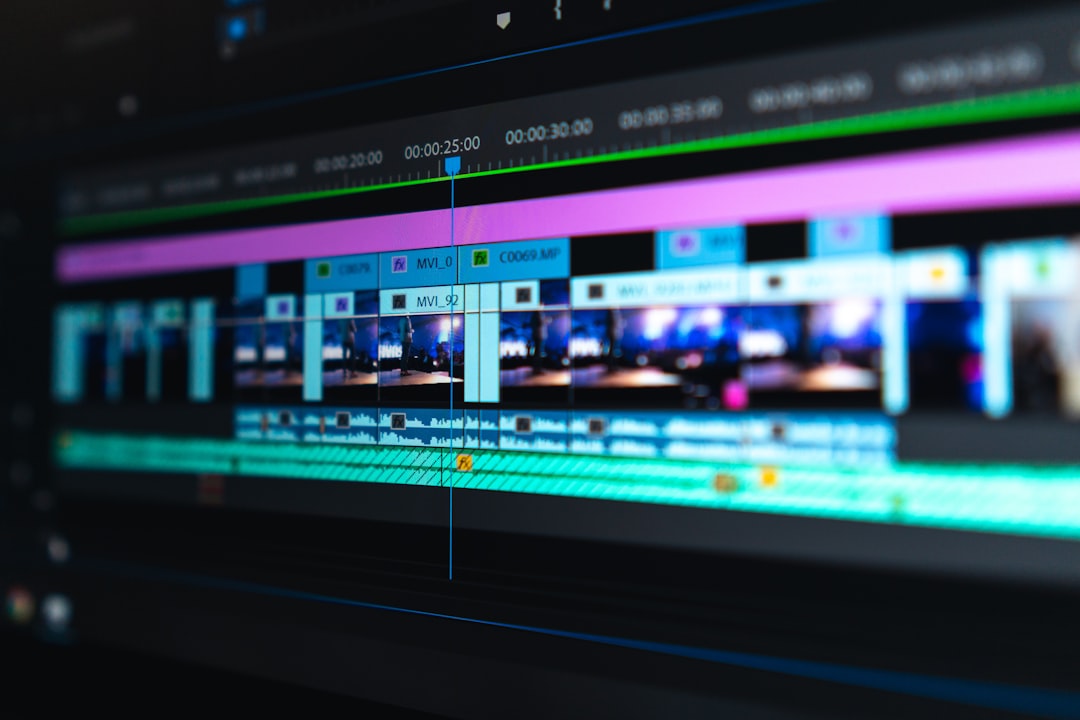
Not all editing tools are created equal. For a beginner, the best video editing software prioritizes a clean interface, drag-and-drop functionality, and built-in tutorials. You don’t need Hollywood-level effects right away. Instead, look for software that offers basic trimming, cutting, transitions, and text overlays without a steep learning curve.
Key features that matter for newcomers include:
- Intuitive timeline and drag-and-drop tools
- Pre-made templates and themes
- Automatic video enhancement or stabilization
- Export presets for social media platforms
- Free or affordable pricing with no hidden fees
Many beginner-friendly programs also include community forums or help centers. This support can be valuable when you run into questions. Remember, results are not guaranteed to look professional overnight, but practice with the right tool will improve your skills steadily.
Why Beginners Search for the Best Video Editing Software
People search for the best video editing software for beginners because they want to create content for YouTube, TikTok, Instagram, or personal projects. The goal is often to edit quickly without technical headaches. Beginners may feel intimidated by complex tools like Adobe Premiere Pro or DaVinci Resolve, which have advanced features that can confuse new users.
Common reasons for this search include:
- Starting a new hobby or side project
- Needing to edit videos for school or work
- Wanting to improve video quality without hiring a professional
- Looking for free tools before committing to paid software
Understanding these motivations helps you choose software that matches your current skill level. Options may vary depending on your device—Windows, Mac, or mobile—so always check system requirements before downloading.
Top Beginner-Friendly Video Editing Software Options
Here are some of the most recommended tools for beginners. Each offers a balance of simplicity and capability. Availability in some areas may differ, so verify before downloading.
1. iMovie (Mac and iOS)
iMovie is a free, built-in option for Apple users. It features a simple timeline, drag-and-drop clips, and ready-made trailers. It’s excellent for cutting footage, adding music, and exporting in 4K. Requirements may apply for older devices, but most recent Macs and iPhones support it smoothly.
2. CapCut (Desktop and Mobile)
CapCut is a free tool popular with social media creators. It offers auto-captions, filters, and easy transitions. The mobile version is especially beginner-friendly. Check your device’s storage before installing, as the app can take up space.
3. DaVinci Resolve (Free Version)
DaVinci Resolve is known for professional color grading, but its free version is surprisingly accessible for beginners. The learning curve is steeper than iMovie or CapCut, but the software includes built-in training videos. Results are not guaranteed without practice, but many users start here and grow into advanced features.
4. Adobe Premiere Elements (Paid)
This is a simplified version of Adobe Premiere Pro. It includes guided edits and automated options for beginners. It costs a one-time fee, not a subscription. Check your eligibility for student or bundle discounts if you’re on a budget.
5. Filmora (Paid with Free Trial)
Filmora offers a drag-and-drop interface with hundreds of effects and templates. The free trial adds a watermark, but the full version is reasonably priced. Requirements may vary for older computers, so review system specs before purchasing.
Common Requirements Before You Start Editing
Before downloading any software, verify that your computer or device meets the minimum requirements. Most beginner tools run on standard laptops, but heavy effects or 4K footage may need more RAM and a dedicated graphics card.
Basic requirements to check:
- Operating system: Windows 10/11 or macOS 11 or later
- RAM: At least 8GB (16GB recommended for smoother performance)
- Storage: 2–10GB of free space for installation plus room for project files
- Internet connection: Required for downloading software and updates
For mobile editing, ensure your phone has enough storage and a modern processor. Options may vary by device model, so check the app store description for compatibility.
Common Mistakes Beginners Should Avoid
Starting out, it’s easy to fall into traps that slow your progress. Here are mistakes to watch for:
- Choosing overly complex software first: Jumping into professional tools can overwhelm you. Start simple.
- Ignoring tutorials: Most beginner software includes built-in guides. Skipping them leads to frustration.
- Overusing effects: Too many transitions or filters can make your video look messy. Less is often more.
- Not saving projects regularly: Video editing can crash unexpectedly. Save your work often.
- Exporting in the wrong format: For social media, use MP4 with H.264 codec. Check platform guidelines.
Remember, results are not guaranteed to be perfect immediately. Editing is a skill that improves with time and practice. Avoid comparing your early work to experienced creators.
How to Choose the Right Software for Your Needs
To pick the best video editing software for beginners, ask yourself these questions:
- What device do I use? (Mac, Windows, mobile, or tablet)
- What type of videos will I edit? (short social clips, vlogs, or longer projects)
- What is my budget? (free tools work well for most beginners)
- Do I need advanced features like color grading or green screen later?
If you’re unsure, start with a free option like CapCut or iMovie. You can always upgrade to paid software when you outgrow the basics. Many programs offer free trials, so take advantage of those to test compatibility. Requirements may apply for trial periods, so read the terms carefully.
What to Do Next After Choosing Software
Once you’ve selected your tool, follow these steps to get started:
- Install the software and open the built-in tutorial or welcome screen.
- Import a short video clip (30 seconds to 1 minute) to practice trimming and cutting.
- Add a simple title and background music. Keep it minimal.
- Export your first video in 1080p resolution and share it with friends for feedback.
- Explore one new feature each week, such as transitions or color correction.
Building confidence takes time. Focus on learning one skill at a time. Online communities like Reddit or YouTube offer free advice, but avoid fake claims about instant success. Your editing journey is unique, and steady practice will bring improvement.
Frequently Asked Questions
What is the easiest video editing software for complete beginners?
For most beginners, iMovie (Mac) and CapCut (Windows, Mac, mobile) are the easiest to learn. Both have drag-and-drop interfaces and require no prior experience. Options may vary by device, so check compatibility first.
Is there free video editing software that is good for beginners?
Yes. CapCut, DaVinci Resolve (free version), and iMovie are all free and beginner-friendly. The free versions include essential tools like trimming, effects, and text overlays. Some advanced features may be locked behind paid tiers, but the basics are sufficient for starting out.
Can I edit videos on my phone as a beginner?
Absolutely. Apps like CapCut, InShot, and Adobe Premiere Rush are designed for mobile use. They offer touch-friendly controls and templates. Storage space and phone performance requirements may apply, so close other apps while editing.
How long does it take to learn video editing basics?
Most beginners can learn the basics—trimming, cutting, adding text, and exporting—in a few hours of practice. Mastering transitions, color, and audio takes weeks or months. Results are not guaranteed overnight, but consistent effort speeds up the process.
Do I need a powerful computer for beginner video editing software?
No. Most beginner software runs on standard laptops with 8GB RAM and an integrated graphics card. For 4K footage or heavy effects, a more powerful computer may be needed. Check the software’s system requirements before downloading to avoid performance issues.
Related Searches
- free video editing software for beginners no watermark
- best video editing app for beginners on iPhone
- simple video editor for YouTube beginners
- video editing software for beginners Windows 10 free
- easy video editing tools for social media content
- beginner video editing software with templates
- best free video editor for Mac beginners 2025
- video editing software for kids and beginners