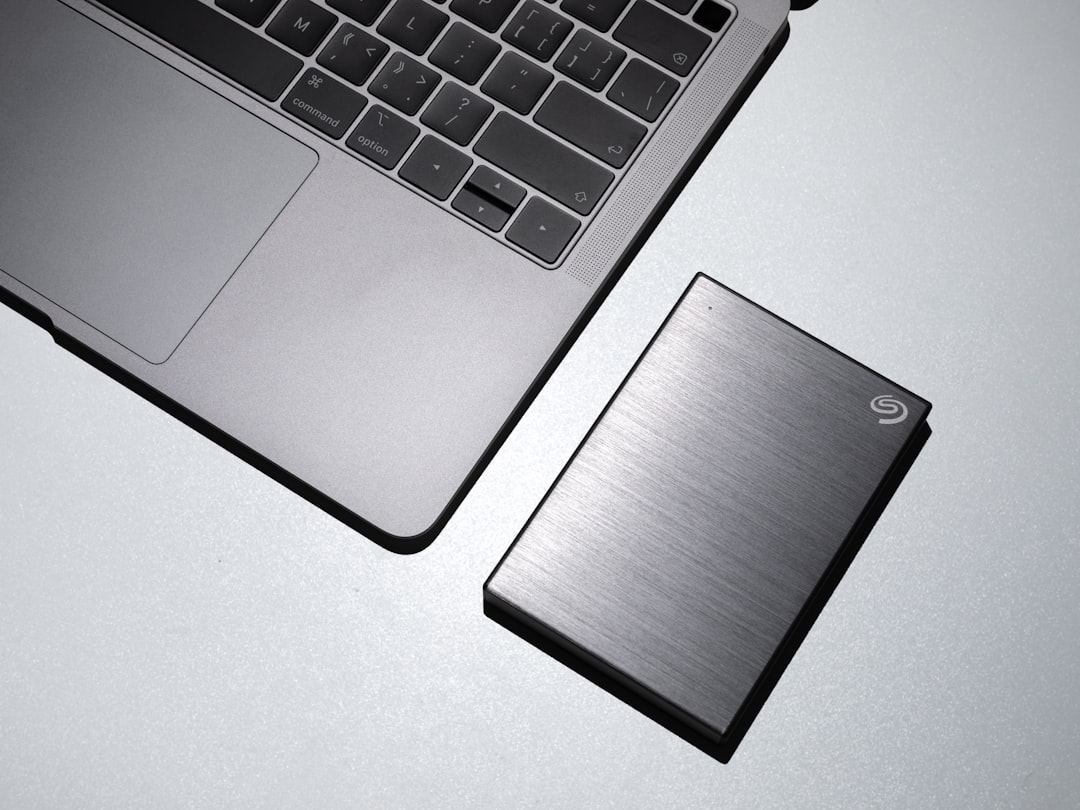
What Are External Hard Drives and Why Do People Need Them?
An external hard drive is a portable storage device that connects to your computer, gaming console, or smart TV via USB or Thunderbolt. Unlike internal drives, you can unplug it and take it with you. People search for the best external hard drives for several reasons: backing up photos and documents, expanding storage for games or video projects, or keeping a copy of important work files safe from computer crashes.
Most users want a balance between speed, capacity, and price. Some prioritize durability for travel, while others need high-speed transfers for editing 4K video. Understanding your own use case is the first step toward making a good choice.
Key Factors to Consider When Choosing an External Hard Drive
Not all external drives are built the same. Here are the main factors that affect performance and reliability:
- Storage capacity: Common sizes range from 500GB to 5TB or more. Think about how much data you currently have and how much you might add over the next year.
- Drive type: Traditional hard disk drives (HDDs) offer more space for less money. Solid-state drives (SSDs) are faster, quieter, and more durable but cost more per gigabyte.
- Connection interface: USB 3.0 or 3.2 is standard and fast enough for most users. USB-C and Thunderbolt 3/4 offer higher speeds for professionals.
- Portability: Smaller, bus-powered drives are convenient for travel. Larger desktop drives require an external power outlet but often hold more data.
- Durability: Some drives are built with shock-resistant cases or water resistance. If you travel often, a rugged model may be worth considering.
Your choice may vary depending on whether you need a drive for daily backups, occasional file transfers, or long-term archiving.
HDD vs. SSD: Which One Is Right for You?
The biggest decision when looking at the best external hard drives is whether to choose an HDD or an SSD. Here’s how they compare:
- HDD (Hard Disk Drive): Uses spinning magnetic platters. Offers large capacities (up to 5TB or more) at a lower price. Slower read/write speeds, but more than adequate for backups and media storage.
- SSD (Solid-State Drive): Uses flash memory with no moving parts. Much faster for transferring large files and launching applications. More expensive per gigabyte, but prices have dropped in recent years.
If you are on a tight budget and need maximum storage, an HDD may be a practical choice. If you frequently move files or want faster performance for creative work, an SSD could be worth the extra cost. Requirements may apply based on your operating system and device compatibility.
Common Mistakes to Avoid When Buying an External Drive
Many shoppers end up with a drive that doesn’t meet their expectations. Avoid these common pitfalls:
- Ignoring compatibility: Some drives are formatted only for Windows or macOS out of the box. Make sure the drive works with your system, or plan to reformat it (which erases all data).
- Overlooking backup software: Many drives come with free backup software. Check if it supports automatic or scheduled backups for your operating system.
- Buying too little capacity: It’s easy to underestimate how much space you’ll need. A 1TB drive fills up quickly with games, videos, or multiple backups.
- Choosing speed over reliability: Very cheap, no-name drives may have poor build quality. Stick with reputable brands and check user reviews for long-term reliability.
- Forgetting about warranty: Most major brands offer a 2- to 3-year warranty. A longer warranty may indicate higher confidence in the product.
Taking a few minutes to check your device’s port type and your likely storage needs can save you frustration later.
How to Check Available Options in Your Area
Availability of specific models and brands can vary by region. To find the best external hard drives that are available to you, consider these steps:
- Visit major online retailers and filter by your preferred capacity and interface type.
- Read recent customer reviews to spot common issues like excessive noise or drive failure.
- Check local electronics stores for in-store pickup options if you need the drive quickly.
- Look for sales or bundle deals that include a carrying case or backup software.
Options may vary depending on your location and the retailer’s inventory. Some drives may be available in some areas but not others. If you cannot find a specific model, comparable alternatives from the same brand often offer similar performance.
What to Do After You Choose an External Hard Drive
Once you have your drive, follow these steps to get the most out of it:
- Format the drive for your operating system if needed. For example, exFAT works with both Windows and macOS without extra software.
- Set up backup software or use built-in tools like Time Machine (macOS) or File History (Windows).
- Create a folder structure that makes it easy to find files later. Consider separate folders for documents, photos, and media.
- Eject the drive safely before unplugging it to reduce the risk of data corruption.
- Store the drive in a cool, dry place away from magnets and direct sunlight.
Results are not guaranteed for every drive, but following these practices can help extend its lifespan. Regularly check the drive’s health using built-in disk utilities or third-party tools.
Frequently Asked Questions
How much storage do I really need in an external hard drive?
This depends on what you plan to store. For basic document backups and a few photos, 500GB to 1TB is usually enough. For large game libraries or video projects, consider 2TB to 5TB. If you are uncertain, a 2TB drive offers a good balance of space and cost for most users.
Can I use an external hard drive with both Windows and Mac?
Yes, but you may need to format the drive in exFAT or FAT32 file system. Most drives come pre-formatted for one system. Reformatting will erase all data on the drive, so back up anything important before doing so. Some drives are also available with dual-format options.
Are external SSDs worth the extra money?
They can be, especially if you frequently transfer large files, edit video directly from the drive, or need a rugged device for travel. For simple backups or storing media you access occasionally, a traditional HDD may work just as well at a lower price. Your needs and budget will determine the best choice.
How long do external hard drives typically last?
Lifespan varies widely based on usage, build quality, and environmental factors. HDDs often last 3 to 5 years with regular use, while SSDs can last longer because they have no moving parts. However, all drives can fail unexpectedly. Always keep a second backup of critical files, especially if you rely on a single external drive.
What should I do if my external hard drive is not recognized?
First, try a different USB port or cable. Check if the drive appears in Disk Management (Windows) or Disk Utility (macOS). If it is listed but not showing up in File Explorer or Finder, it may need a drive letter or mount point. If none of these steps work, the drive may be faulty, and you should contact the manufacturer for warranty support.
Related Searches
- portable external hard drives under $100
- best external hard drives for Mac users
- external hard drive for gaming consoles
- rugged waterproof external hard drives
- USB-C external hard drive recommendations
- 2TB vs 4TB external hard drive for video editing
- external hard drive backup software comparison
- how to choose between HDD and SSD external drives